For the current BusAlarm app · Checked 5 November 2026
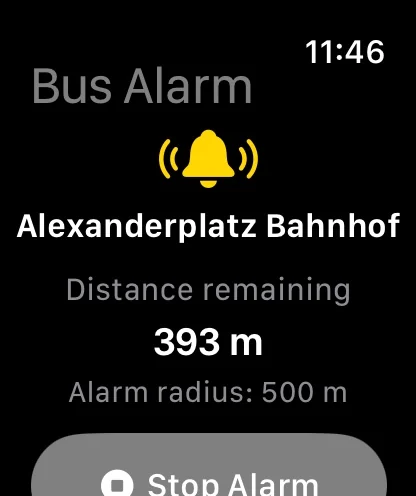
Open the paired Apple Watch companion
The watch does not start an independent destination-tracking journey. It receives the phone’s alarm information. Waiting for location means there is not yet a remaining-distance reading to show. No Active Alarm asks you to set a destination on the phone, or to open Bus Alarm on the phone to sync if it is unreachable.
- Use an iPhone with iOS 26.0.1 or later and a paired Apple Watch with watchOS 26.6 or later. Make sure the BusAlarm companion app is installed on the watch.
- Set and start the destination alarm on your iPhone.
- Open BusAlarm on the watch. It requests the current state from the phone when reachable.
- Check the destination, Distance remaining and Alarm radius. Distance formatting follows the journey’s units.
Stop an alarm from your watch
The watch sends a stop request to its paired iPhone. If the phone is unreachable, the request is queued for later delivery. The watch clears its own displayed alarm immediately, so a cleared watch screen alone is not confirmation that a disconnected phone has already received the request.
- Open the active alarm on the watch.
- Tap Stop Alarm.
- If the phone was disconnected, check the iPhone when it reconnects to confirm that monitoring has stopped.
Add a Home Screen widget
You can read the same setup instructions inside Settings → Home & Lock Screen Widgets. Current Trip shows the destination and last reported distance to the alarm. Route Club shows saved miles, points and progress towards the next badge. Widgets work without adding a Live Activity.
- On iPhone, touch and hold an empty Home Screen area.
- Choose Edit → Add Widget and search for BusAlarm.
- Choose Current Trip or Route Club and add the widget in an available size.
- Tap the widget to open the corresponding area of the app.
Add a Lock Screen widget
- Touch and hold your iPhone Lock Screen.
- Choose Customise, then Add Widgets.
- Find BusAlarm and choose an available Current Trip or Route Club widget.
Add optional Lock Screen journey progress
A Live Activity adds journey progress to the Lock Screen and, on a compatible iPhone, Dynamic Island. It is an optional display, separate from both ordinary widgets and the system destination alarm. Available iOS controls can include app-specific Live Activities permission and access while locked; labels depend on your device and software version.
- Start your destination alarm on the iPhone.
- Choose Add to Lock Screen Alerts on the map’s active-journey controls.
- In Add BusAlarm Alert, review the destination, radius and distance, then tap Add Alert.
- If BusAlarm reports that Live Activities are disabled, review the iPhone’s Live Activities settings and try again.
If a display looks out of date
- iOS controls widget refresh timing; a widget is not a continuously refreshed GPS display.
- Current Trip replaces an older distance with Open app to refresh once its reading is stale. Tap it and check the active journey in BusAlarm.
- Check the phone’s location permissions and whether the watch remains connected before treating a displayed distance as current.
- An absent widget or Live Activity does not itself cancel the destination alarm. Review the alarm state in the app separately.
More for your journey
Something still unclear? Contact BusAlarm support.