For the current BusAlarm app · Checked 5 November 2026
Before your first journey
BusAlarm 26.3 requires an iPhone with iOS 26.0.1 or later. The optional Apple Watch companion requires watchOS 26.6 or later and a paired iPhone.
BusAlarm follows your iPhone’s location and alerts you near a place you choose. It does not follow a bus number or provide a live bus timetable. Use your transport operator’s information to check departures, service changes and the correct stop.
You do not need a BusAlarm account. The welcome guide explains permissions and optional purchases. Stop alarms, Live Activities, the Apple Watch companion and up to ten saved routes are free; Pro is an optional one-time purchase for unlimited saved routes. A developer tip does not unlock Pro.
Prepare the phone
- Follow the welcome guide’s Location While Using and Location Always steps. Allow Always access so the phone can continue monitoring after you lock it or change apps.
- Keep Precise Location enabled for BusAlarm. The app needs a sufficiently accurate reading to confirm entry into your chosen radius.
- Allow System Alarm when prompted. AlarmKit provides the destination alarm. Notifications are a separate permission for banners and other notification-based features.
- If you skipped a step, open Settings in BusAlarm and tap Review alarm permissions, or Ready for your next stop, to review Permissions. Open iOS Settings from there when needed.
Set your first stop alarm
- Open Map and search for a stop, hotel, postcode or destination. Select the result and check its position. You can also touch and hold the map to drop a pin while an alarm is not active.
- Enter a Radius in the displayed distance unit. Choose enough room to collect your belongings; a tiny radius can leave little time to react.
- Leave Not before off for a normal proximity alarm. Enable it only when you deliberately want to prevent an alert before a chosen date and time.
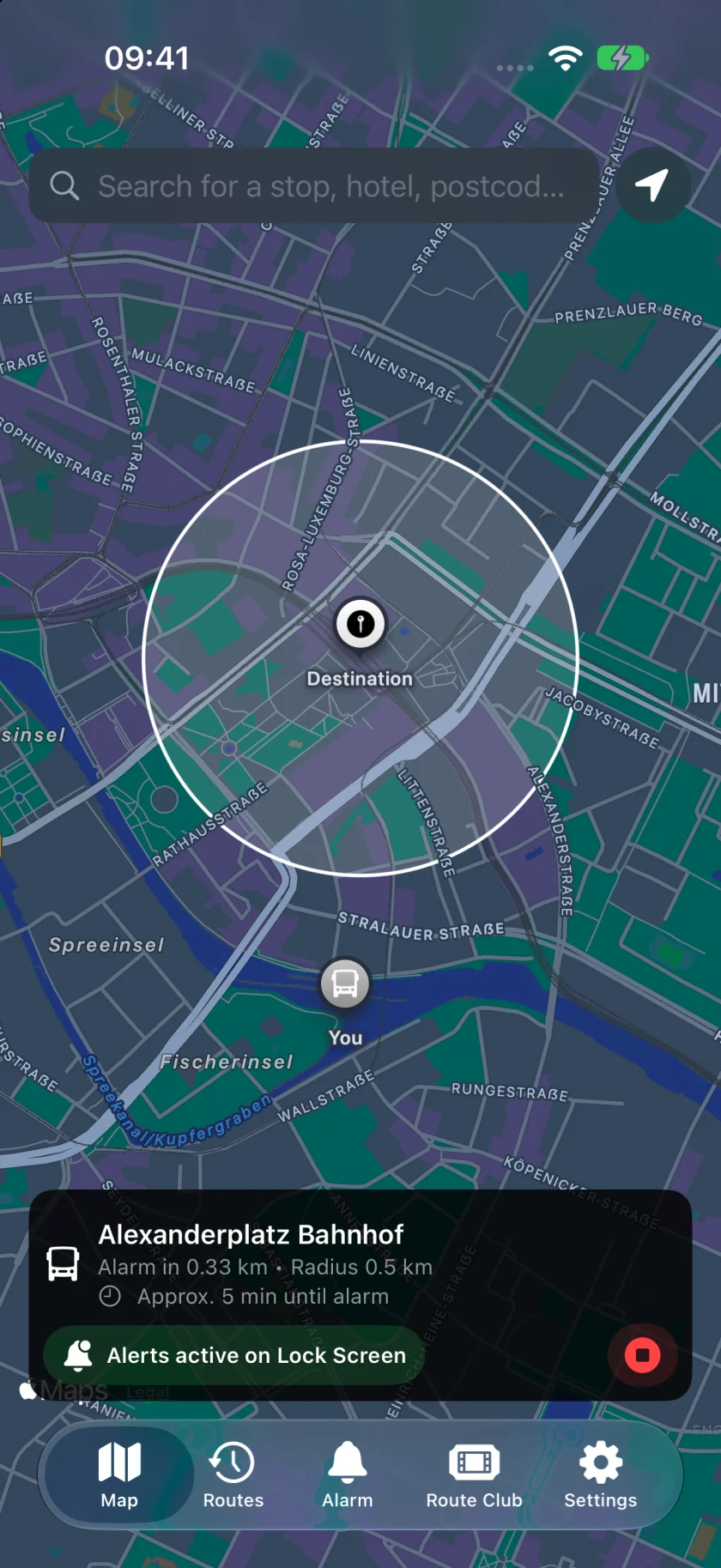
- Tap Enable Alarm. Resolve any Action Needed message, then check the active destination and radius on the map card.
- If you want an additional journey display, choose Add to Lock Screen Alerts and then Add Alert. This display is separate from the destination alarm.
During and after the trip
Keep the phone powered and avoid force-quitting BusAlarm during the journey. GPS reception, permissions, battery settings and operating-system conditions can affect monitoring. Test your setup on a short, familiar journey and continue checking important stops yourself.
The Alarm tab lets you review an active alarm, change its radius or timing and tap Save. When finished, use Disable Alarm and confirm. If Save my routes is enabled, completed journeys can appear in Journeys. Turning that preference off stops future saving; it does not delete earlier journeys.
More for your journey
Something still unclear? Contact BusAlarm support.